WebP vs PNG vs JPEG: When to Use Which Image Format
WebP is 25-34% smaller than JPEG with ~95.6% global browser support. A decision guide to PNG vs JPEG vs WebP: compression, transparency, and when to use each.
You're about to save a screenshot and you pause: PNG or JPEG? Or maybe you've been wondering whether WebP is finally "ready" for real use. If either of those sounds familiar, this is for you. The short answer is that WebP is the right default for almost everything today — but there are still solid reasons to pick PNG or JPEG in specific situations. Here's the longer answer, with the reasoning behind each call.
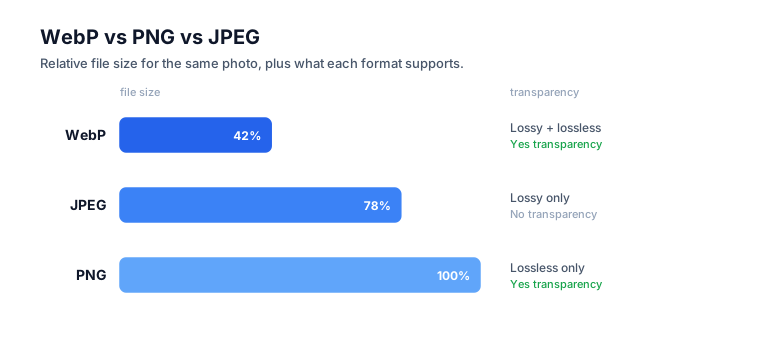
The three formats in one paragraph each
WebP wins on size, PNG wins on lossless fidelity for sharp-edged graphics, and JPEG wins on universal compatibility. Here's the one-paragraph version of each before we get into the trade-offs.
JPEG (1992) is a lossy format built for photographs and natural images. It throws away information you can't easily perceive — high-frequency noise, subtle color shifts — to hit small file sizes. It doesn't support transparency. And it's genuinely bad at sharp edges, like text, line art, and UI screenshots, where the lossy compression smears visible artifacts called "ringing" around the edges.
PNG (1996) is lossless. Every pixel is preserved exactly, and it supports full alpha-channel transparency. The trade-off is size: PNG files are much larger than JPEG for photographic content, though they're indistinguishable from the original. PNG shines for graphics with sharp edges — logos, icons, UI screenshots — and anything that needs transparency.
WebP (2010, from Google) does both lossy and lossless, plus full transparency. Google's own benchmarks put lossy WebP at 25–34% smaller than JPEG at equivalent SSIM quality, and lossless WebP at about 26% smaller than PNG. MDN's image-types guide lands in the same range. In other words, it's a strict upgrade over both — with one asterisk: slightly-less-than-universal support in legacy browsers and older software.
The decision in one table
Match the format to the job: WebP for almost everything, PNG for lossless editing masters and tiny icons, JPEG only where a platform demands it. The full mapping:
| Use case | Best format | Why |
|---|---|---|
| Hero photos, product images | WebP (lossy, q=80-85) | Smallest file at visually identical quality |
| Logos, icons | WebP (lossless) or SVG | Sharp edges intact; SVG even better if vector |
| Screenshots of UI | WebP (lossless) or PNG | Need sharp text rendering |
| Photographs in a context that requires JPEG | JPEG (q=80-85) | Stuck with format requirements |
| Anything needing transparency | WebP or PNG | JPEG simply cannot represent it |
| Email attachments | JPEG | Maximum compatibility |
| Editing source files | PNG | Lossless source, no compounding artifacts |
If your platform supports WebP — and almost all do now — default to it for everything except editing source masters.
Browser support reality check
WebP is safe to ship today: every major browser supports it, and global coverage sits around 95.6%. As of 2026, support looks like this:
- Chrome, Edge, Opera — since 2010 (Chrome 17)
- Firefox — since 2019 (Firefox 65)
- Safari — since 2020 (Safari 14)
- iOS Safari — since 2020 (iOS 14)
- Android Browser — universally
Combined, caniuse puts global coverage around 95.6%. The remaining few percent is mostly very old devices and legacy enterprise browsers that wouldn't run a modern web app anyway. For any new site, WebP is a safe bet.
If you want belt-and-suspenders, the <picture> element gives you a clean fallback:
<picture>
  <source srcset="hero.webp" type="image/webp" />
  <img src="hero.jpg" alt="..." />
</picture>
Older browsers ignore the <source> and fall back to the <img>.
The file-size impact in real numbers
The savings are real and large: WebP routinely cuts a page's image weight by roughly a third versus JPEG. Abstract percentages don't land, so here's a concrete case: a 1920×1080 photograph, the kind you'd use as a hero image.
| Format | Quality | Size |
|---|---|---|
| PNG (lossless) | n/a | ~3.2 MB |
| JPEG | 90 | ~520 KB |
| JPEG | 80 | ~280 KB |
| WebP (lossy) | 80 | ~180 KB |
| WebP (lossy) | 75 | ~140 KB |
WebP at quality 80 comes in around a third smaller than JPEG at the same quality, and looks identical — squarely in line with Google's measured 25–34% range. Multiply that across every image on a page and you can shave whole megabytes off your load time.
For Core Web Vitals — LCP specifically — this is a big deal. Image weight is often the single largest factor dragging down LCP scores on image-heavy pages, so swapping in WebP is one of the highest-leverage performance wins available.
When PNG actually wins
PNG only wins on size for very small, limited-palette images — otherwise WebP's lossless mode beats it for almost any input. The exception: very small images. For tiny icons (under 200×200 pixels with limited color palettes), PNG-8 — that's 256-color indexed PNG — can occasionally come out smaller, because PNG can use a tiny palette while WebP uses 24-bit color regardless.
The practical rule: if it's bigger than a favicon, use WebP. And if it's an SVG-shaped thing — a logo, an icon, an illustration — use SVG instead of either.
When JPEG actually wins
JPEG is still the right call in exactly three situations: legacy ecosystems, files that travel through tools you don't control, and big managed photo libraries that lean on mature metadata tooling.
Legacy ecosystems. Print-on-demand services, some email clients, and older CMS uploaders that don't accept WebP.
Source files that travel through other tools. If your image will be processed by tools you don't control — third-party uploaders that strip metadata or re-encode on the fly — JPEG is the safest interchange format.
Photo libraries with metadata. WebP's EXIF/IPTC support is improving, but JPEG metadata tooling has a 30-year head start, and for big managed libraries that maturity matters.
For new web pages serving end users, though, WebP wins.
Practical workflow
Here's the workflow we'd recommend, start to finish:
- Edit in PNG. Keep your source files lossless so you don't compound artifacts every time you re-save.
- Export to WebP for the web. Convert PNGs at export time with the PNG to WebP tool.
- Compress on the way out. Even WebP can be trimmed further with the Image Compressor by easing the quality slider down. Quality 80 is usually indistinguishable from the original.
And if a workflow specifically demands PNG and all you have is a JPEG source, the JPG to PNG tool converts it in your browser — just remember PNG can't restore quality that JPEG already discarded.
Common mistakes
A few habits cost people file size or quality without their realizing it.
Saving photos as PNG. Triples your file size for zero visible benefit. Use WebP or JPEG.
Saving screenshots as JPEG. Produces visible ringing artifacts around text and UI edges. Use WebP or PNG.
Cranking JPEG or WebP quality to 100. Wastes file size for a result that looks identical to quality 80–85, which is the sweet spot for almost everything.
Forgetting the <picture> fallback while still supporting genuinely old browsers. Rare today, but it matters if your audience includes corporate environments running ancient browsers.
Resizing dimensions in HTML instead of in the source file. Loading a 4000×3000 photo and rendering it at 800×600 wastes bandwidth on every single visitor. Pre-resize with the Image Resizer.
The bottom line
Default to WebP for photos, UI screenshots, and anything with transparency. Use JPEG only when the platform requires it, and PNG for editing source masters or favicon-sized images. When you can, reach for SVG instead — it's a vector format and beats all three for icons and illustrations. Whatever you choose, compress before serving; at quality 80 the savings are usually invisible to the eye and very visible in your load times.
Frequently asked questions
Is WebP better than PNG?
For most images, yes. Lossless WebP is about 26% smaller than PNG while preserving every pixel, and it supports transparency too. The one exception is very small indexed-color icons, where PNG-8 can occasionally come out smaller because of its tiny palette.
Does WebP support transparency?
Yes. WebP supports a full alpha channel in both its lossy and lossless modes, so it can do everything PNG transparency does. That makes it a drop-in upgrade for logos, icons, and any graphic that needs to sit over a colored background without a white box.
When should I still use JPEG?
Use JPEG when the platform forces your hand — print-on-demand services, some email clients, and older CMS uploaders that reject WebP. It is also the safest interchange format for files that pass through third-party tools you do not control. For pages you serve directly, WebP wins.
How much smaller are WebP files than JPEG?
Google reports WebP lossy images are 25-34% smaller than comparable JPEG images at equivalent SSIM quality. In practice a 1920x1080 hero photo that is roughly 280 KB as JPEG quality 80 lands near 180 KB as WebP at the same quality, looking identical to the eye.
What browsers support WebP in 2026?
Every major browser. Chrome and Opera since 2010, Firefox since 2019, and Safari since 2020 (macOS Big Sur and iOS 14). caniuse puts global support around 95.6%, and the remainder is mostly legacy devices that would not run a modern web app anyway.